How to Download YouTube Videos on a PC or Mac
You don't need a desktop program for this anymore. Any browser on Windows or macOS can save a YouTube video as a normal MP4 in about the time it takes to make a cup of tea. Here's how it works, which quality to pick, and what to do when the file won't play.
The quick steps
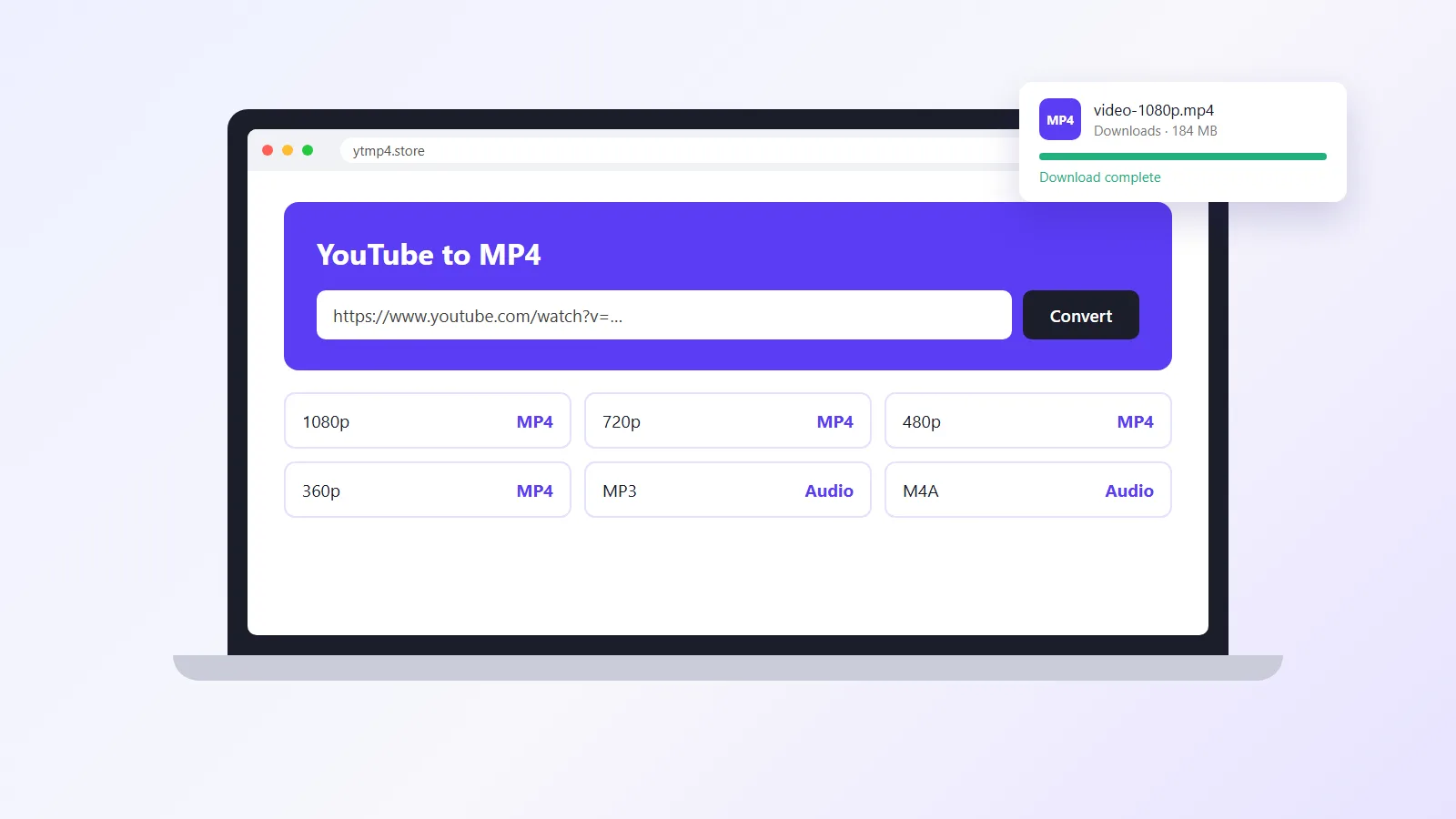
Open the video on YouTube and copy the address from the browser bar (Ctrl+L then Ctrl+C on Windows, Cmd+L then Cmd+C on a Mac). Go to YTMP4, paste the link and press Convert. Pick a quality, usually 1080p, and click Download. The MP4 lands in your Downloads folder with the sound already in it.
That’s all most people need. The rest of this page covers the details that trip people up on a computer.
Why desktop downloaders used to be a pain
For years the usual advice was to install a program. Most of those apps bundled toolbars, asked for admin rights, or stopped working every time YouTube changed something, and then you had to update them again.
There’s also a technical reason old tools gave bad results. YouTube sends HD picture and sound as two separate streams. A simple downloader grabs only the picture, so you get a sharp 1080p video with no audio, or it falls back to the single 360p stream that still has both.
YTMP4 takes the picture stream you chose and the AAC audio stream, joins them on our server without re-encoding, and hands your browser one finished file. Quality stays exactly as YouTube stored it.
Step by step on Windows
1. Copy the link
Any YouTube address works: a normal watch page, a short youtu.be link, a Shorts link or a video inside a playlist. If you’re in the YouTube app on a Windows tablet, use Share › Copy link.
2. Paste and convert
Open ytmp4.store in Chrome, Edge, Firefox or Brave. Click the box, press Ctrl+V and then Convert. After a second or two you’ll see the title, the thumbnail and every quality YouTube has for that video.
3. Pick the quality
- 1080p for watching on a monitor or TV, or editing in Premiere, DaVinci Resolve or CapCut.
- 720p when you want smaller files for a laptop with little storage.
- 480p or 360p for lectures and talks where the picture barely matters.
- MP3 or M4A for audio only, which our YouTube to MP3 page handles.
4. Save the file
Click Download. Chrome and Edge show the progress in the top right corner, Firefox in the arrow on the toolbar. When it finishes, click the file to play it or open the folder to move it somewhere else.
Step by step on a Mac
The steps are the same in Safari, Chrome or Firefox. Safari saves to the Downloads folder in the Dock by default. Double-click the MP4 and it opens in QuickTime Player, which can also trim it (Edit › Trim) before you share it.
If you plan to drop the video into iMovie or Final Cut, stay at 1080p or lower. Both import H.264 straight away with no conversion step.
How much space you’ll need
A rough guide for a 10-minute video:
| Quality | Typical size |
|---|---|
| 1080p | 120–250 MB |
| 720p | 60–120 MB |
| 480p | 30–60 MB |
| 360p | 20–40 MB |
| MP3 (192 kbps) | about 14 MB |
Fast-moving videos like sports and gaming land near the top of each range. A person talking to a camera lands near the bottom.
Downloading several videos
There’s no batch button, but you can open YTMP4 in a few tabs and run one video in each. Browsers download files in parallel without any trouble. Keep it to three or four at once so YouTube doesn’t slow the requests down.
If you like having a second converter bookmarked for days when one site is busy, YTubeMate works the same way in the browser and also saves 1080p MP4 and MP3 files.
When something goes wrong
The video plays but there is no sound. The file came from a tool that only saved the picture stream. Download it again here; every video button includes the audio.
Windows says it can’t play the file. This usually means a VP9 or AV1 file from another site. Our MP4s are H.264, which the Windows Media Player opens without extra codecs.
The download stops halfway. A dropped connection or a sleeping laptop is the usual cause. Click the same quality again; the link keeps working for a while after you convert.
“YouTube is busy right now”. At peak hours YouTube limits requests. Wait a minute and press Convert again.
Private, members-only and age-restricted videos fail. They need a signed-in YouTube account, and we never ask for your login. Live streams work once the broadcast has ended.
A note on copyright
Download responsibly. Your own uploads, Creative Commons videos and anything a creator allows you to keep are fine to save. Re-uploading someone else’s video as your own isn’t, on any platform.
Ready to try it? The YouTube to MP4 converter is the fastest place to start.
Frequently asked questions
Can I download YouTube videos on PC without installing anything?
Yes. A web converter like YTMP4 does the work on its own server and your browser simply saves the finished MP4. Nothing gets installed, so there are no extensions or background updaters left on your computer.
Where do downloaded YouTube videos go on Windows?
Into This PC › Downloads, unless you changed the folder in your browser settings. Press Ctrl+J in Chrome or Edge to open the download list and click the folder icon next to the file.
Which player should I use for the MP4?
The built-in Media Player on Windows 11 and QuickTime on a Mac both play our files, because they are H.264 video with AAC sound. VLC works too if you already have it.
Can I get 4K on a computer?
Our list stops at 1080p on purpose. YouTube only stores 1440p and 4K as VP9 or AV1, which many editors and older players struggle with. 1080p H.264 opens everywhere.
Why is the download slow sometimes?
Long videos at 1080p are a few hundred megabytes, and at busy hours YouTube slows down the request on our side. Keep the tab open; the file starts as soon as it is ready.
Is downloading YouTube videos legal?
YouTube's terms allow downloads only through its own features unless you have permission. Your own uploads, Creative Commons videos and clips a creator lets you keep are fine. Re-uploading someone else's work is not.